
In this lesson we will cover
Contact creation
In many cases, we do not have to worry about creating a new contact as it is done automatically when the patient sends us an enquiry form. However there are cases when a contact calls us directly without submitting one of those forms or perhaps the person who submitted their form has a family member that needs an appointment too. In these cases, there are two different ways to create a contact and it’s important to use the correct method to avoid double ups in Hubspot.
Option 1 – The “phone in”
When a patient calls us directly without having submitted an enquiry or downloading a price list, a new contact is created in Hubspot, but there is no data attached to it, just a phone number. We need to open this contact and edit it to input the data required.
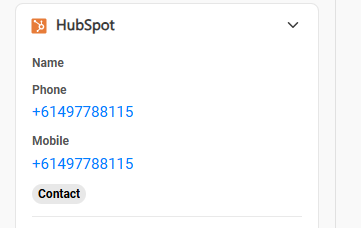
When the call comes through and we see in the Dialpad information that no name is coming up, this means that there is currently no Hubspot data to display and we need to update the information ourselves.
In this case, we need to update the information in Hubspot to avoid having multiples of the same number in hubspot
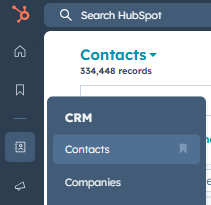
In Hubspot, open the Contacts page
- Open CRM
- Select contacts
- I find this a helpful page to bookmark – click on the flag on the right hand side to pin it to your favourites for easy access in future!

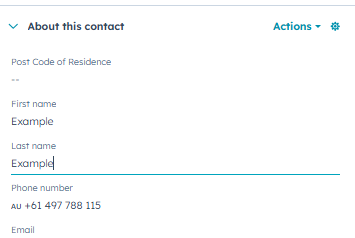
Click on the “- -” in the first name section to open the patient file.
From here, while we have the patient on the phone, we can get their name and email before moving on with the call as normal.
Option 2 – The “double booking”
Every now and then, we luck out and secure the coveted “double booking” – one enquiry that leads to booking TWO people in! In this case, it is always best to try and get the contact details for the second booking rather than have two deals in the one contact. In this scenario, we don’t have the “–” to click on, so have to manually create the new contact.
Open the contact page the same as above (CRM > Contacts).
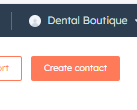
In the top right hand corner, click “Create contact”
Once the data is in, click create in the bottom right
Fill in the required fields – Name, number and email address
There are other fields, but we only need to fill these in for now
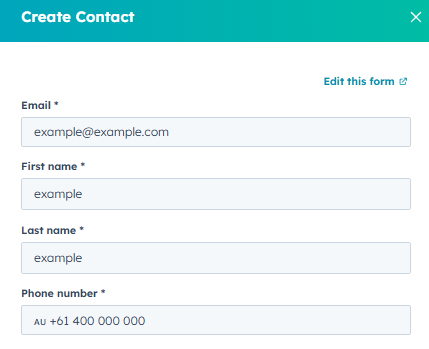
Remember, email is a unique field in Hubspot and needs to be different for every patient. In some circumstances, the second patient wont have an email, if it’s a child for example. In which case we won’t be able to create the contact and we will have to create a second deal in the parent’s contact (we will cover this in the deals lessons)
Searching a Contact
There are two ways to open a patient file. We will start by searching in Hubspot and then go through how to open the patient’s profile directly from Dialpad too. Often we have to go back and check a patient to ensure we have entered information in correctly or update a booking time. We have already covered this above, but to refresh your memory
- Open the toolbar on the left of the screen
- Select the “CRM” option
- Select the “Contacts” option
- Alternatively, if you favourited the option as mentioned above, it’s bookmarked in the favourites section!
The other situation may be that a contact has returned our call and you have answered the call on Dialpad.
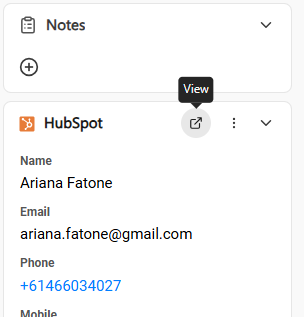
Once you’ve answered the call and your dialpad opens the patient communication page, you will see on the right hand side this panel.
Click the “View” link and it will open a tab in your browser directly to the patients contact page
Updating contact information
There are only a few circumstances in which we will have to update information in the patients contact page as all the fields automatically update when a new form is submitted. However, to ensure the best patient experience and ensuring our automated systems look more personable, there are a few occasions that require us to manually update a patients information.
- They entered their info in incorrectly – usually grammatical or format errors
- They have called back to change an appointment
- Changing subscription info if they wish to stop getting emails
Checking for format errors
When we finish a call with a patient, in many cases they receive an automatic SMS or email after the call. Before we even make the call, we need to ensure that their first name is correct in our system. This ensures that there are no grammar issues or that the message doesn’t look to robotic.
- Double up of surname (Rob Franklin Franklin for example)
- This happens when they enter their full name in the first field with out realising its just for first names. Then they add their surname.
- Lower case letter for name (rob instead of Rob)
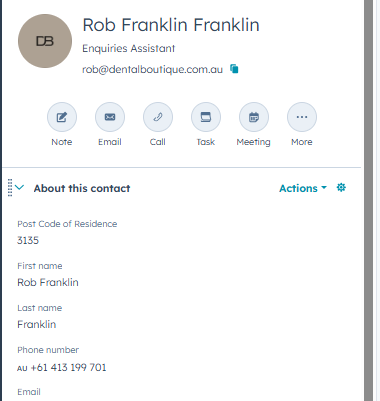
To fix this, we just need to remove the additional surname from the first name field.
This one is super important as when the contact gets an SMS or email from us, this field is used in the workflow of those comms. It looks much more like a fake message if the contacts full name is in the message!
For this example, we can see that the patient has just not put capital letters for their first or last name.
We need to ensure that before we call the patient, we update this to proper grammar rules, again as messages are sent automatically, we don’t want it to look fake. The patient won’t know this is automated and it just looks lazy on our end.
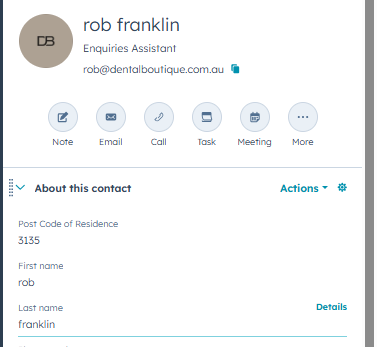

All you have to do to update is click on the field and change it. Once you are done, you should see a pop up in the bottom left of the screen saying it is saved.
Updating booking information
If we book a patient in for an appointment, some fields automatically update from our playbook (more on that in future lessons!)
Occasionally, the patients we book call us back to change that appointment time/day. When this happens we have to update the NP consult information so they get an updated welcome email.
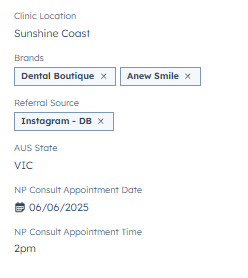
Information that might change could be their
- Clinic location
- They might have realised another clinic in their state was closer or easier for treatment
- We may have made a mistake and selected the wrong one
- NP consult appointment date
- NP consult appointment time
Same as above, we just update the information and look for that “saved” icon to pop up.