
In this lesson, we will cover (click on each title to jump ahead!)
How to action
We’ve made it! It’s time to work through our tasks for the day!
Step one is opening the task page.
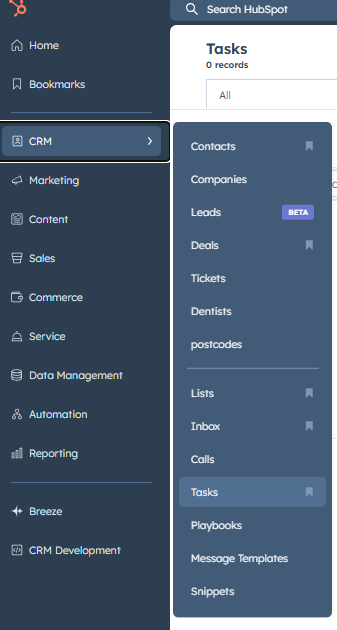
On the left hand side, open the menu.
Select CRM > Tasks
This one you definitely want to bookmark! You will use it multiple times a day
Depending on what task we are doing, we have slight changes to the process, so lets go through them on at a time
- Nurture tasks
- 1st attempts
- Follow up attempts
- Pricelist tasks
- RQs
- Creating RQs
- Completing RQs
Nurture tasks – 1st attempts
These are our hottest tasks. They are created from all enquiries made through the website and Meta and are the first time we get a chance to reach out a contact. Our nuture pipeline lead to us making up to five calls. We will start at the first call, then move on to the follow up attempts.
First thing each day, when we open our tasks pipe, you will have a number of tasks titled “FC1 – [PATIENT NAME]”. These are enquiries that have come in since we closed last night. Start with those tasks before moving to help work through the other new leads
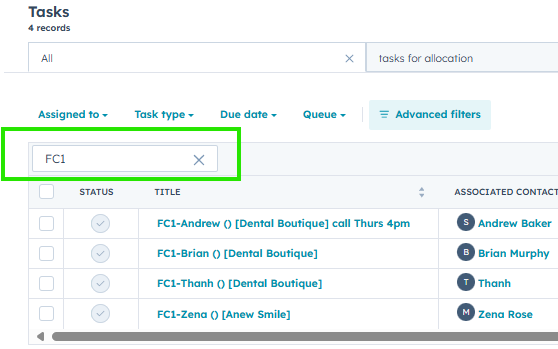
To work through these tasks specifically, start by searching FC1 in your task pipe to isolate the new leads. Then click “Start tasks” to begin working through them
Before we make the call, there are a couple of items to tick off first to ensure we are following the correct process. Hubspot makes many automatic decisions, so everything we do needs to follow a specific process
Most importantly, before we do anything else, the deal stage needs to be changed from “New lead” to “Attempted follow up”.
This ensures that another agent doesn’t pick up the same new deal and call at the same time.
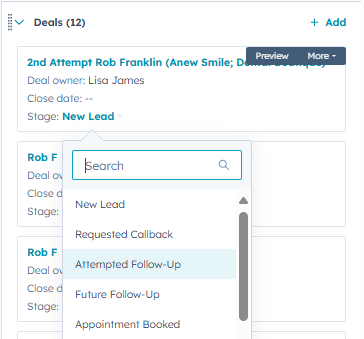
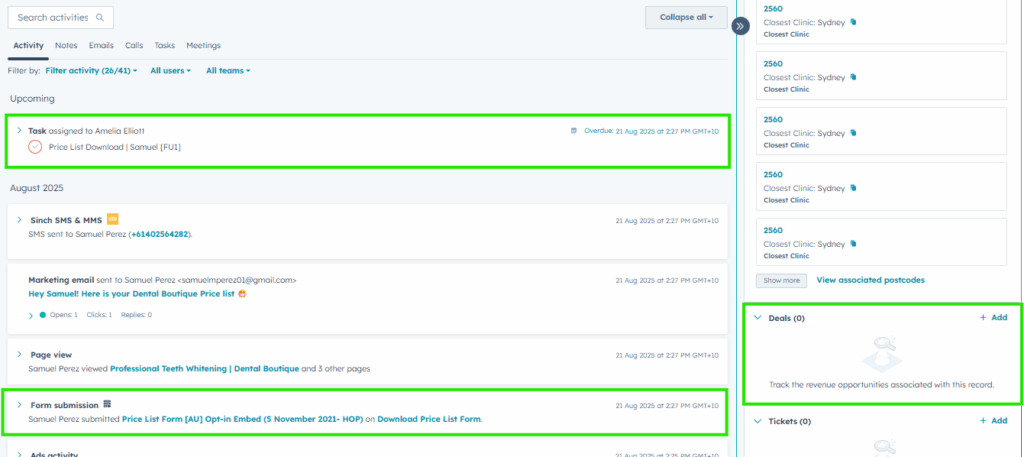
Next we tick off the task then look for the item in the activities page called “Form submission”
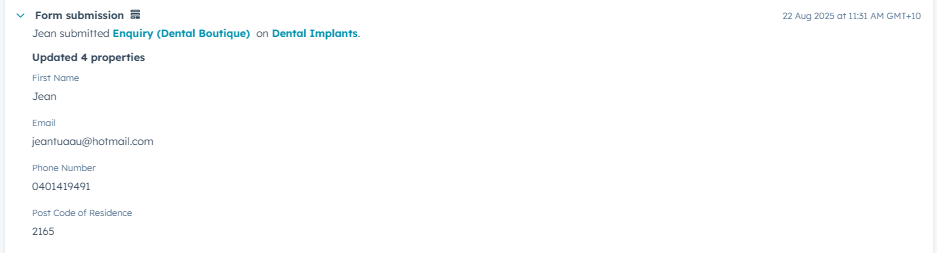
This can contain important information about the enquiry
- What they might be enquiring about
- Language requests
- Communicaton requests (such as email or SMS only)
- Call back times
We need to make sure we are checking this before we make ANY calls to ensure we don’t call people who don’t want a call
Once we have checked all this, we can make the call! (Making phone calls is covered in the dialpad LMS)
Depending on what happens during the call, we then log the call.
- Booked
- Close lost
- NC – left in automation (no answer)
We will cover the booked and lost deals later in this lesson, but for now, lets assume the contact didn’t answer.
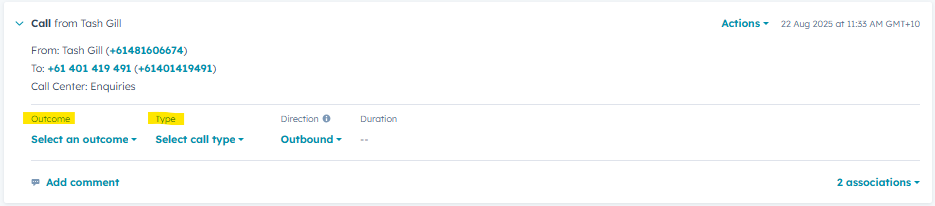
When we click on the call log, it opens up some options for us.
We need to log the outcome of the call (NC – left in automation) and which call type it was – in this case, is a “New lead – 1st attempt”
This tell Hubspot that the patient didn’t answer. Both the deal stage and the call log need to be correct to ensure the follow up task is generated.
Once this is done, we can move on to the next task in our list.
The other time we action New leads is through the day from the deals pipeline screen. This page should be checked regularly as any new leads that come through during the day get allocated in a round robin fashion through the team. We aim to call all enquiries with in FIVE minutes – so you have this time to action your task or it becomes fair game for the team.
If you see your name on one of these new leads, get on it! Alternatively, if you see a lead that’s been in the pipe for five mins and no one has actioned it yet, it’s all yours!
Open the deal and action the same as above.
Nurture tasks – Follow up attempts
New leads we couldn’t reach on the first attempt follow an automation workflow and may generate a “Follow up – 2nd attempt” task.
These are allocated out by task leads through the day. These generate 2.5 hours after the first call is made. Further attempts generate overnight as they have at least a 24 hour delay in the system. 3rd, 4th and 5th attempts are allocated out in the morning and once done, no more will generate through the day.
The process is almost the same, accept that the deal stage is nearly always already set to Attempted follow up. We need to check still, as the patient may have been in touch between now and the last phone call. If the deal stage is already Close lost or Booked – we just tick the task off and move on as no call needs to be made.
If the contact is still in Attempted follow up, we can again make the call – following the same process as above in that we need to check the form submission to get a sense of the enquiry.
Once called, the logging again becomes important to create the next task – NC left in automation and which call you just made (2nd-4th attempt – 5ths are slightly different, we will cover them shortly)
Price list tasks
Price list downloads (DB) and Affordability guide downloads (Anew Smile) lead to a slightly different task that are actioned slightly differently
The first thing to notice is that there is no deal stage for these contacts. Just the task to tick off and a form submission to read for an idea of the enquiry.
We only make one attempt at price lists and if they answer or not, we log the calls in the same fashion as nurture tasks. Selecting booked/lost/left in automation and the logging the call type as “Price list – fist attempt”.
We only create a deal if we land the booking – if they are lost, don’t answer or want a call back scheduled, we DO NOT create a deal stage.
RQs
Occasionally, some one answers the call but can’t talk right now. After asking “when is a good time for me to call you back” and we have the required information, we can create a task called an RQ. Lets make one now and then call them back!
Lets say, we just tried to call someone and they want a callback at 2pm tomorrow.
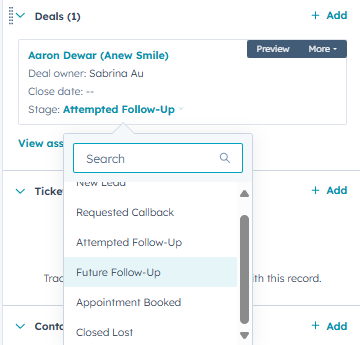
Firstly, before we log the call – we need to change the deal stage to “Future follow up”
This ensures that no tasks generate automatically before we are due to call the contact at their desired time
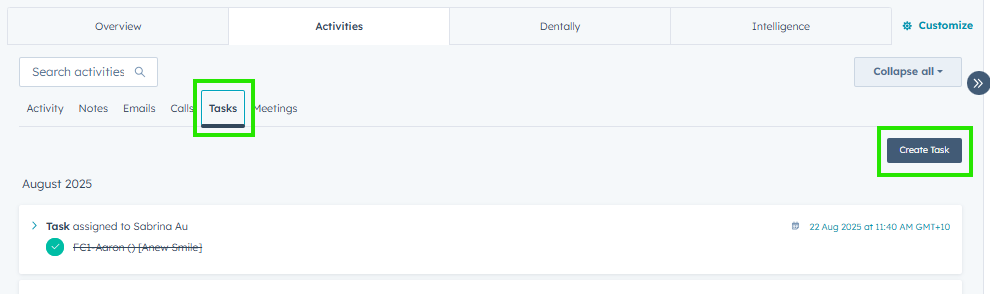
Next, we go to the “Tasks” tab and click “Create task”
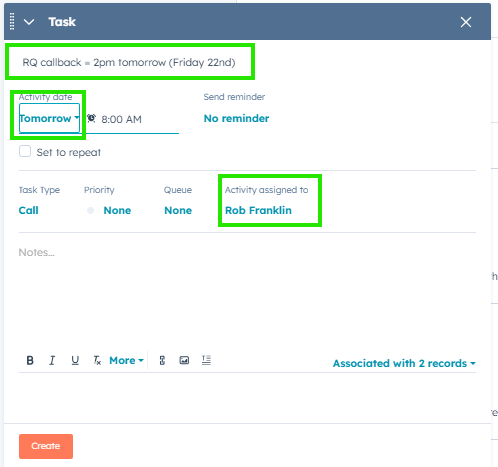
Then enter the important information. The task title MUST start with “RQ callback” – this ensures that when you need to search your tasks or a TL needs to allocate RQs in the morning, they can be found quickly
The requested date and time of the call should be included in the task title too. This makes it easier to see call back info
Eg – “RQ callback – 2pm tomorrow (Friday 22nd)”
Then allocate to yourself if you are working, otherwise check with your desk neighbour to find someone who is working and can make the call.
Log the call based on the out come – so will be “C – Follow up scheduled” and then the call type (whether its an attempt or pricelist just log the call you are up to)
When the time of the call comes along, we action the task just like it was another call. Put the deal in Attempted follow up, tick the task off, review the form submission then call.
Log the call as if it was the next call in the nurture pipeline. If the original call was from a pricelist download, log it as a price list first attempt again.
It’s important to regularly check your task pipeline and use your calendar to remind yourself of any RQs. The time/day the contact requested is the BEST time to reach them so most likely the best time to land the booking!
Notes
Sometimes we need to leave notes to remind ourselves or to tell who ever gets this contact next about. Information can include
- Requests for someone who speaks another language
- Information obtained during a call
- Unfinancial patients
- Rudeness/agression etc
- If the contact mentioned only to be called during certain times
- Why they are close lost – often its helpful to leave a note saying stuff like “patient not ready to book yet, shopping around” – this way if they enquire again in 3-6 months for example, we have that info handy and can save time triaging
- If the contact has requested SMS or email only communication
We can also pin these notes to the top of the patients activity page. Super handy to ensure those notes are seen straight away and we dont have to scroll through the contacts notes while they are on the phone.
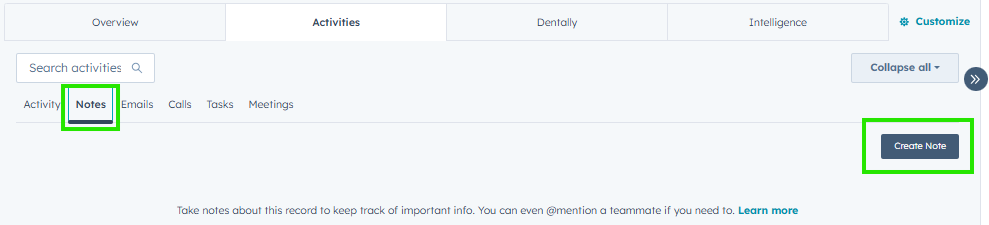
To create a note, click on the “Notes” tab and then “create note”
Type in what ever information needs to be left – keep it as short and sweet as possible; ensuring it is still clear! Don’t be making up abbreviations

To pin the note, click in the top right hand side where it says “Actions” and select pin
Only one thing can be pinned per contact, so ensure if there is already important info to just add to that not write a new note
How to close a deal (win or lose!)
We’ve called the patient, spoken to them for 4-5 mins and they have decide either to book in, or they’re not ready yet (and we’ve hit them with all the objection handling word tracks!)
It’s time to close the deal. Lets close a booking first, then go through a lost deal.
Appointment booked
So once we’ve logged the call as Booked and which call type it was, the next thing we do is change the deal stage to “Appointment booked”. This will lead to the deal page changing and the fields we need to fill in.
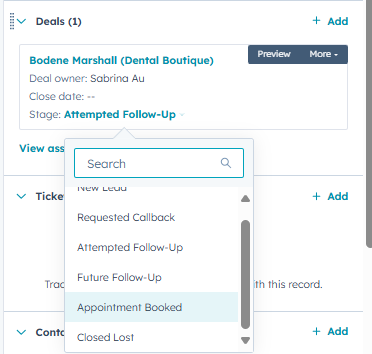
On the Deal tab, select “Appointment booked” .
This will open the page below for us to input the booking information.
Treatment – select the most relevant treatment type. If they have talked about multiple options, select the main reason. It’s usually what corresponds with the treatment type you picked in Core/Principle
Ensure the deal owner is your name (or who ever did the triage if you are just locking in a booking for another agent)
Clinic location and Consult type are the determining factors as to which welcome pack email the patient receives so make sure you select the correct location and what kind of appointment (Complimentary, paid, video).
Consult Date and time – we record this data here as it is used again in the welcome packs but also to help Hubspot determine attendance rates
The Affordability, Suitability and Urgency are ratings out of 5 in how you feel the patient fits those categories
- Affordability – how likely they are to be able to afford treatment or be accepted for a payment plan
- Suitability – do we do the treatment they are interested in
- Urgency – how quickly do we need to get this done? Are they in pain or about to get married etc
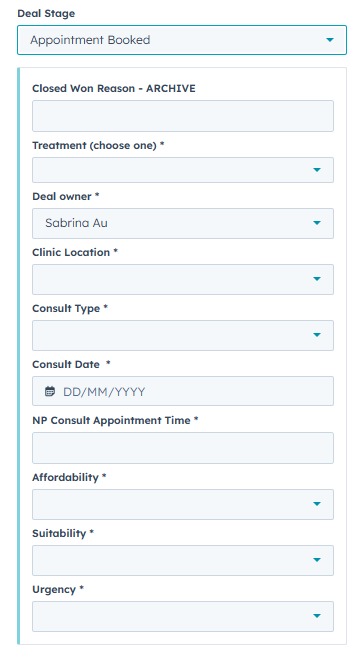
Once you have updated these fields and logged the call – congrats! You have just secured a booking! We can now move onto the next task and try get another!
Close lost
In a similar fashion to booked appointments, when we close lost a contact, we update the deal stage to “Close lost” then upate the details in the deal page that are listed. There are much fewer fields to fill in, but they are equally as important to get correct as there are various workflows that determine follow up emails and SMS that the patient will receive depending on what we choose.
Lets go through the options so you know which option is the one to select when closing the deal.
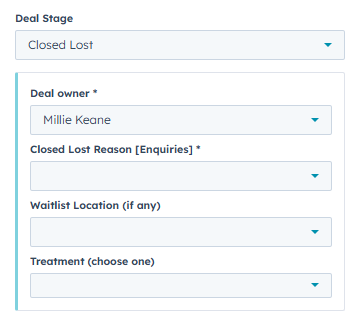
Ensure you select your name as the deal owner – this way if the contact does reach back out it will end up in your pipeline
Close lost reason I will cover below in more detail
Waitlist location is for Australian contacts that aren’t willing to travel – there is a list of locations in the drop down, if your contact mentions being in one of those locations, select it so we can collect data on where future sites should be
Treatment is if we managed to chat at all and got some treatment info off them. This ensure that any follow up emails are tailored to their enquiry
Lets break down the close lost reasons now and explain what each one is and when you might use it.
- Interested but triaged and not suitable
- This covers our unfincial or unsuitable patients
- They have asked about payment plans/super release but will not meet expectations. We steer these toward a price list so they can call us back once they have someone who can apply for payment or have some savings
- Unsuitable patients are ones who have enquired about treatment we don’t provide – jaw surgery, intraceptive orthodontics etc.
- Not interested
- Contacts who are we want to book in, but they are for what ever reason they give, not willing to commit to booking yet. We have tried all our word tracks and they just aren’t commiting
- Location too far (Australia)
- Not willing to travel. We’ve offered the video consult and they still wont commit. When selecting this option, also use the waitlist drop down mentioned above to select a location that might match their needs.
- Location too far (International)
- Any one outside of Australia/NZ
- We may not realise until talking to them or if we notice the mobile number doesn’t start with +61 or +64
- They receive an email to send us an Australian or NZ number to contact – but the admin team will pick this up
- Patient hung up
- Usually as soon as they hear “Hi its {name} from Dental Boutique….
- Might be during the call if they aren’t getting the answer they want.
- Other/Non NP/ Marketing
- This is for contacts that we shouldnt be contacting as they aren’t New Patients (NP).
- They may already be patients, in which case we let the site know.
- It might be people trying to reach marketing for promotional purposes, in which case we let Marketing know.
- Wrong details
- We try to call and we get an automated recording saying the number is wrong.
- Before you call, you notice the number is missing digits or has extras.
- We close them off and they will receive an email to fix it so we can call them.
- Expired
- Contacts that have gone through our entire nurture task workflow and not answered any calls.
- After five attempts, we close the deal and select this reason
- THIS IS ALSO THE ONLY CLOSE LOST REASON THAT INVOLVES A DIFFERENT CALL LOG
- We must log the call as “NC – Close lost/expired” instead of the usual no answer “left in automation”