In this lesson, we will cover the following (click on the title to jump ahead)
What is Principle?
Principle is our BMP for Sydney and Chatswood.
There is just the one URL that we can switch between the two clinics.
Most of the information is already covered in the previous lesson in Core – in this lesson we will focus just on the details that are different. It’s mostly just user interface differences.

Log into Principle and select the “Timetable” tab.
Ensure you select the correct clinic in the location filter.
Always start looking for appointments from today. Our aim is to fill the next available appointments first.
Core is used by Client Services to book new patient (NP) consults and by the site to manage the books for all the dentists and their treatments.
As the FOC agents don’t have access to Hubspot, this is where we leave communication between Client Services and the sites about the patient.
Information such as
- Important personal info from the patient
- Dental anxiety
- Pregnant
- Deaf/blind
- Wheel chair access
- Rescheduling/cancellation notes
- Or maybe they’re just running late and called us to let us know
- Availability for communication
- “Call after 4pm”
- SMS only
- If you’ve booked them in along side another family member
- Extended travel
- Lives 3 hours drive away
- Flying from interstate
- Why they requested a dentist
- Family/friend referral
- Know them personally
- Seen on Instagram/facebook
It’s important to remind at this stage, that the only appointments we work with in Client Services are the NP Consults – any enquiries by existing patients need to be forwarded to the site.
How to book a consult
Booking in Principle is much the same process as Core,
- Find a dentist that suits the patients dental concerns.
- Check availability of dentist.
- Lock in the appointment.
Finding the right dentist
Once we are logged into Principle and on the appointments page, we need to ensure the dentist does the treatment the patient is interested in.
We start again, with the treatment codes

A difference here, is that the codes are now not single letters but rather abreviations. “Inv/Invis” instead of “I” for example.
Also, Dentists that don’t see NP, just don’t have a bio at all.
Some dentists have split their diary into treatment and consult days – on the treatment days, it will not display what treatments are available. (If we are able to take a preblock or open space on that day, we will need to check a different day to confirm treatment type is available)
Dentist availability
Unlike Core, Principle does not display “away” days – rather the sites just block the books off entirely or remove the dentist from that day.
So we can’t accidentally select dentists that aren’t free
The final part of finding an appointment is actually looking at the schedule and finding a free space in the books to book the NP consult.
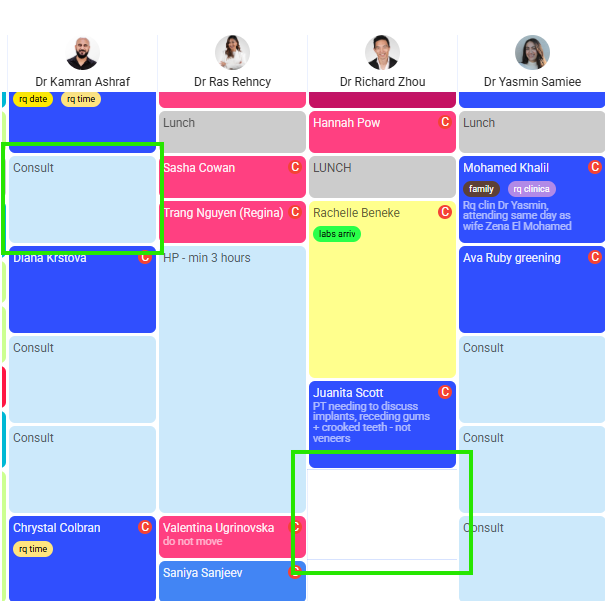
Similar to Core, we can take any WHITE space as well as taking “Consult” blocks.
- NP consults in person are 60 mins by default. The only exception is if the clinician requests more/less time
- Online discover consults (ODC, this is a video consult) are 30 mins
- Emergency appointments are 30 mins
If we are taking a Consult block, take the full length for in person consults. If doing an ODC or emergency, ensure you take time that allows someone else to book the other 30 mins. If using white space, ensure you are using the correct time.
Lock in the appointment
Booking in Principle, is similar to Core. There is one extra step. Before we highlight the appointment time, we click on “Create appointment” in the upper right of the calendar
Once we highlight an appointment, it is the same process as Core.
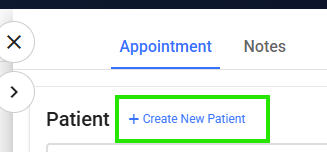
Select “Create a new patient” then enter the required information
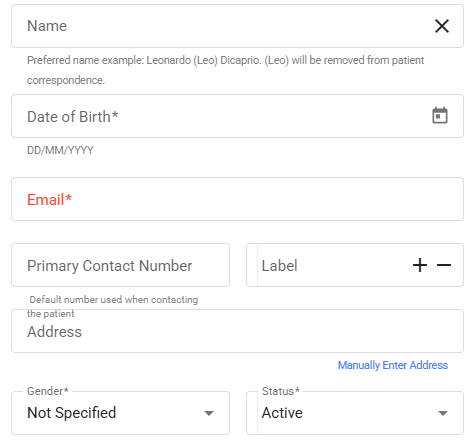
These are the same as Core – again with one new option
- Name
- Contact number
- you must ensure this is accurate and contains no spaces or +61 etc. Otherwise the sites will have no way to contact the patient to confirm the appointment
- Date of birth
- Gender
- Principle requires this field to be filled in.
- We don’t need to ask this question as very often is pretty clear – it can also be updated later by the dentist/PC if needed
There are other fields, but we don’t need to worry about those.
Once we’ve created the patient profile, next step is to select the appointment type.
There are a range of options to choose from. We need to ensure we are selecting the correct NP consult option that corresponds with the patients needs
Each appointment type (NP consult, ODC etc) has categories of appointments. It’s crucial that the appointment type lines up with what we are booking the patient in for
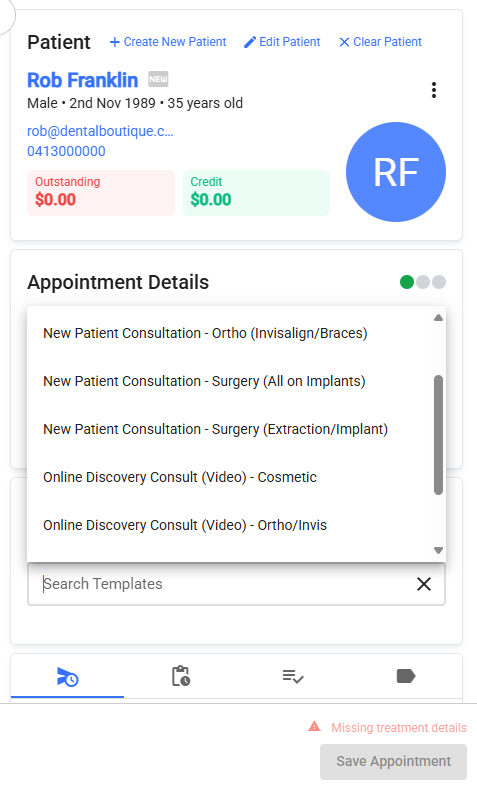
We can search the appointment types – same as Core
A nice difference between the two systems, is that Principle ONLY shows available treatments that the clinician does – this makes it a little easier to choose.
Just like Core, sometimes we need to leave a note or tag for a booking.
Click on the “tags” option on the right and the options are the same as Core
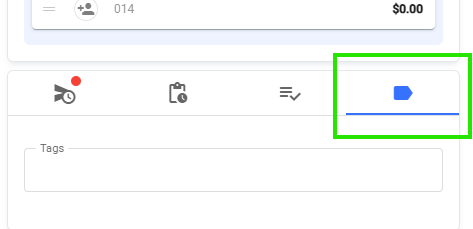
- Family
- This tag is for when we book multiple people together in one booking (partners, parent/child, siblings etc)
- It shows the site that there are two bookings together that cant be shifted unless we can move both together.
- Dual
- This is if a patient has multiple appointments in one day.
- We try avoid doing this, but if they insist, we may book a NP consult and a check up/clean for example. BOTH appointments need to be tagged
- Dental anxiety
- Helpful to let the dentist know up front to be extra considerate
- Requested date
- If a patient is travelling for the appointment or taking time off work etc – lets the site know not to bother trying to move them
- Requested clinician
- If a patient specifically requests to see a dentist. Best to let the site know this too so they don’t try move the patient to a different book.
Here is a video showing the whole process start to finish.
How to reschedule a consult
Rescheduling in Prinicple is even easier than Core.
No need to search patient info, we skip all of that!
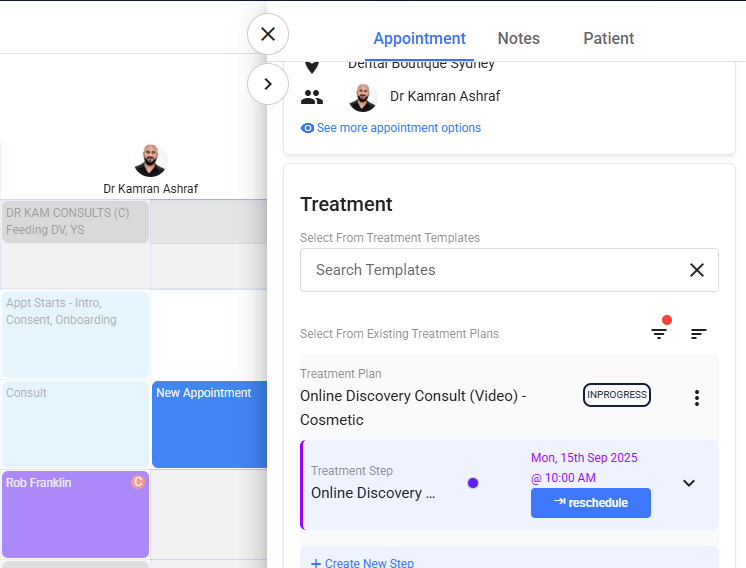
Click “create appointment” and highlight the new booking day/time. Just like we would if making a NP Consult.
Instead of adding a new patient, just type their name in the search bar and it will bring up their details – including any existing appointments.
Click Reschedule. This will move the appointment to the new date/time.
Done!
How to cancel a consult
Just to say it again – similar to Core, we follow the same process with slight adjustments.
- Offer to reschedule before processing the cancellation
- Find the patient.
- Find their consult.
- Click on it in the calendar.
Now, here’s the user interface change.
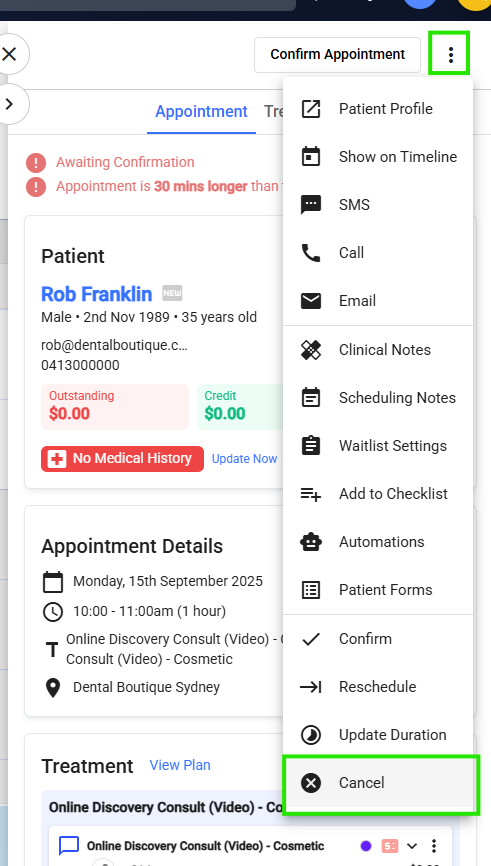
Click on the three dots in the top right.
Click Cancel.
This then opens the cancellation page.
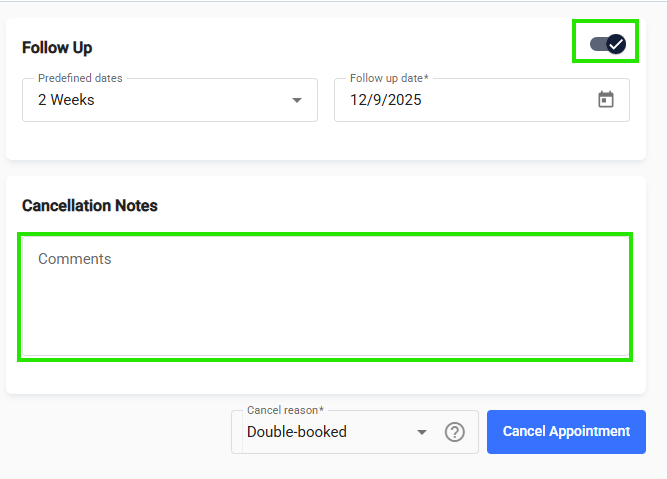
We can opt to arrange a follow up – should the patient be ok with that. This will flag the site to call them at a future date.
It’s also helpful to leave thorough notes as to why the patient is cancelling. This helps the site decide when they call them back to try lock them back in.