
Safety Culture (also known as iAuditor) is designed to help practices align with relevant legislation and requirements for infection control, WHS, and other regulated areas such as medication management. For those practices that perform surgicals, we have also implemented an audit for following aseptic processes.
Safety Culture also provides current and ongoing evidence for accreditation, so practices don’t have to collate documentation separately (this is very time consuming and takes a lot of resources that we don’t have). This way practices have a standardised way of monitoring their compliance, knowing if they are meeting these obligations, and it also ensures that all our practices are being measured against the same standards.
It also protects practitioners, as they are legally responsible for IPC – you can delegate a task but not the responsibility, so by monitoring processes we can address any deficiencies and reduce risk of breaches/incidents.
Audit Schedule
Below is the current audit schedule. Please note that this is subject to change, depending on the results that we see as we go.
- Infection Prevention and Control (IPC) – 6 monthly
- Aseptic Technique – 6 monthly (in conjunction with IPC audit)
- First Aid Kit & Defibrillator Check – daily
- WHS – 6 monthly
Logging in to Safety Culture
Access Safety Culture using this link:
https://app.au.safetyculture.com/
Usernames:
Each practice has its own login, and up to three devices can be signed into the account at any one time. Below is a list of usernames.
Please note that these email addresses are not real addresses, they’re just for usernames.
Adelaide Dental Boutique
adelaide@dentalboutique.com.au
Anew Dental Boutique
anew@dentalboutique.com.au
Balwyn Dental Boutique
balwyn@dentalboutique.com.au
Brisbane Dental Boutique
brisbane@dentalboutique.com.au
Chatswood Dental Boutique
chatswood@dentalboutique.com.au
Geelong Dental Boutique
geelong@dentalboutique.com.au
Mornington Dental Boutique
mornington@dentalboutique.com.au
Perth Dental Boutique
perth@dentalboutique.com.au
Sunshine Coast Dental Boutique
sunshinecoast@dentalboutique.com.au
Sydney Dental Boutique
sydney@dentalboutique.com.au
Auckland Dental Boutique
auckland@dentalboutique.com.nz
Password:
Please reach out to Myf or Philip from the Compliance team if you are unsure of your password, or need it to be reset.
Process to complete an audit
- Download Safety Culture app onto phone or other hand held device. Alternatively you can access the site via your desktop (desktop makes the process slower, you will need to take photos separately and then upload them to your desktop).
- Log in with the email address and password.
- Select Inspections from the menu at the bottom of the screen.
- Two tabs will appear: Templates and In Progress & Complete. Select Templates.
- Select required self assessment template, eg. “First Aid Kit & Defibrillator Daily Check”.
- Select Start inspection at the bottom of the screen.
- Answer questions as per the Safety Culture template – it will guide you through.
- As you move through the template, you may be required to provide photos and add notes – the app will prompt you. These photos and/or notes will be mandatory and you will not be able to complete the self assessment until you have provided these.
- If you are unable to provide evidence at the time you are completing the assessment, you can save your progress by clicking “Complete inspection”.
- A prompt will then appear with two options: Review inspection and Save as in progress. Select whichever is applicable.
- If you have elected to save your self assessment as in progress, you can return to it later by selecting Inspections from the bottom menu, then select In Progress & Complete. Your self assessment will appear here.
- Select your assessment and then select Continue Inspection. Progress through the template as required.
- Once you have completed your inspection, select Complete Inspection.
- Two options will be available: View & export report and Save and close. Select Save and close.
- Your assessment will appear in the In Progress & Complete tab, saying Complete.
- You then have the option to convert your assessment to a PDF document that you can save for your own records. Select your inspection, then select View & export report. It will convert to PDF, which you can then download.
Action items for areas of non-compliance
Action items to address areas of non-compliance will be generated as an outcome of the audit.
Discuss these tasks with your Clinical Team Lead or DA.
Go through each one with them and ensure steps are in place to get them completed.
Technical Steps
Once logged in, select Actions from the left side menu.
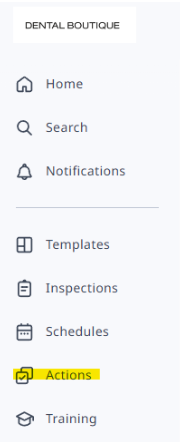
Filter > Site location (select your location)
Filter > Status (select To Do)
Support from the Compliance Team
Myf and Philip from our Risk and Compliance team will be your point of contact for any issues surrounding this program. Your Clinical Team Lead / Senior Dental Assistant will be in charge of ensuring the audits have been completed and all action items have been crossed off.